Create and embed a website testimonial widget
Choose a layout, select testimonials, and copy the complete embed code.
Updated
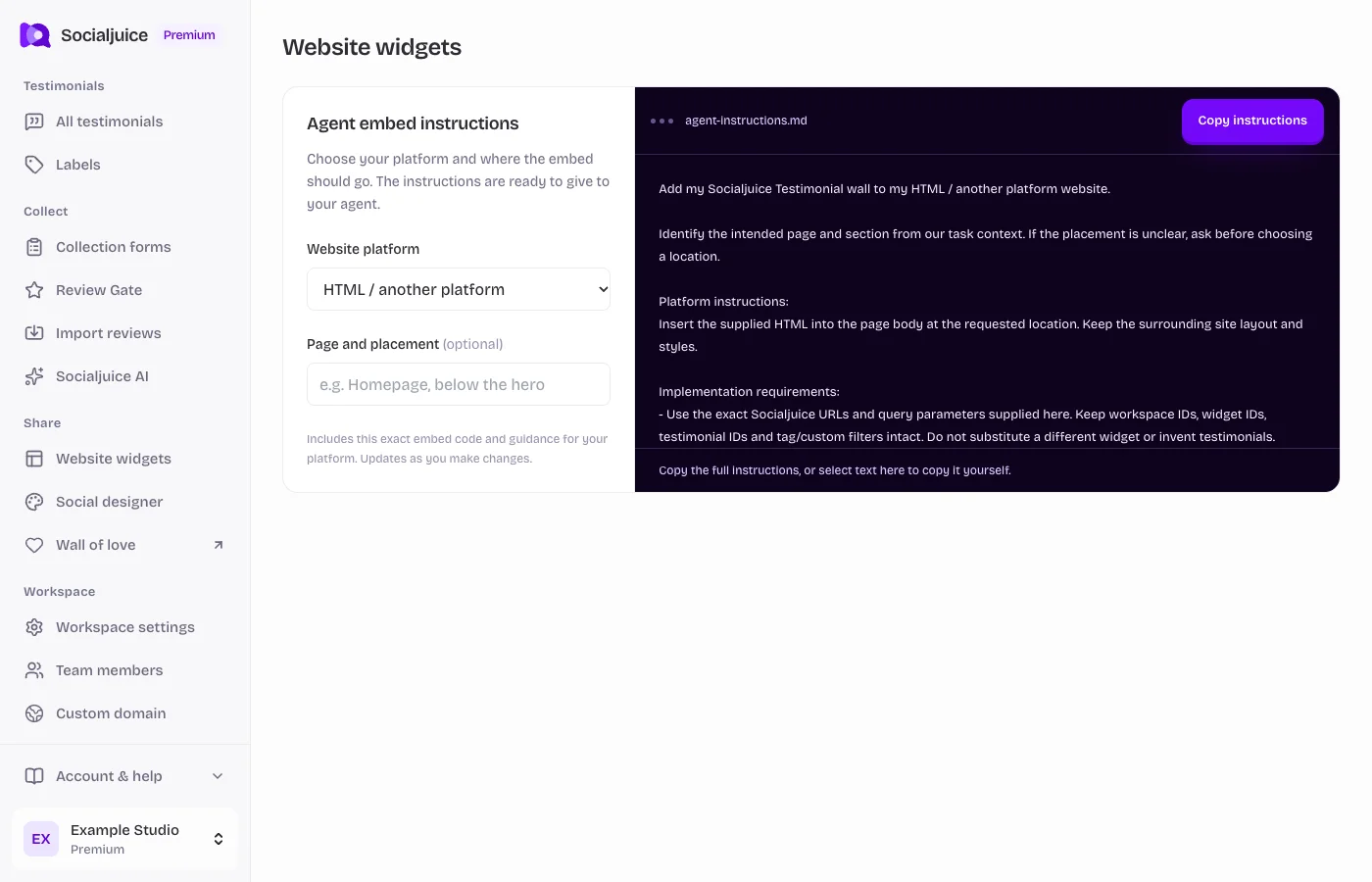
Current Socialjuice dashboard with example data. Interface labels follow your dashboard language.
Create the widget
- Open Website widgets in the sidebar and choose the option to create a widget.
- Choose an available layout and customize its appearance. Select the testimonials, labels, or other filters offered by that layout.
- Check that the testimonials you want to display are public. Use the preview to review both written and video content.
- Save the widget. Open its embed options and copy the complete HTML snippet supplied for this widget.
Install on your website
Paste the snippet into your website’s supported HTML or custom-code block. Keep its exact URLs, IDs, parameters, scripts, and initialization code. Do not replace them with an example from a guide.
You can also choose your platform in Agent embed instructions and copy a platform-specific handoff for your coding agent. Review the page and placement before handing it over.
Check the rendered page
Open the published or staging page on desktop and mobile. Check loading, video playback, height, and whether the widget shows the intended selection. Some editors do not run scripts in their editing canvas.
If a widget is empty, first check public status and filters. If its bottom is cut off, check both the iframe height and any outer site-builder block. Use the troubleshooting guide for a full checklist.