Connect a custom domain with CNAME
Use your own subdomain for collection pages and check DNS, verification, and SSL.
Updated
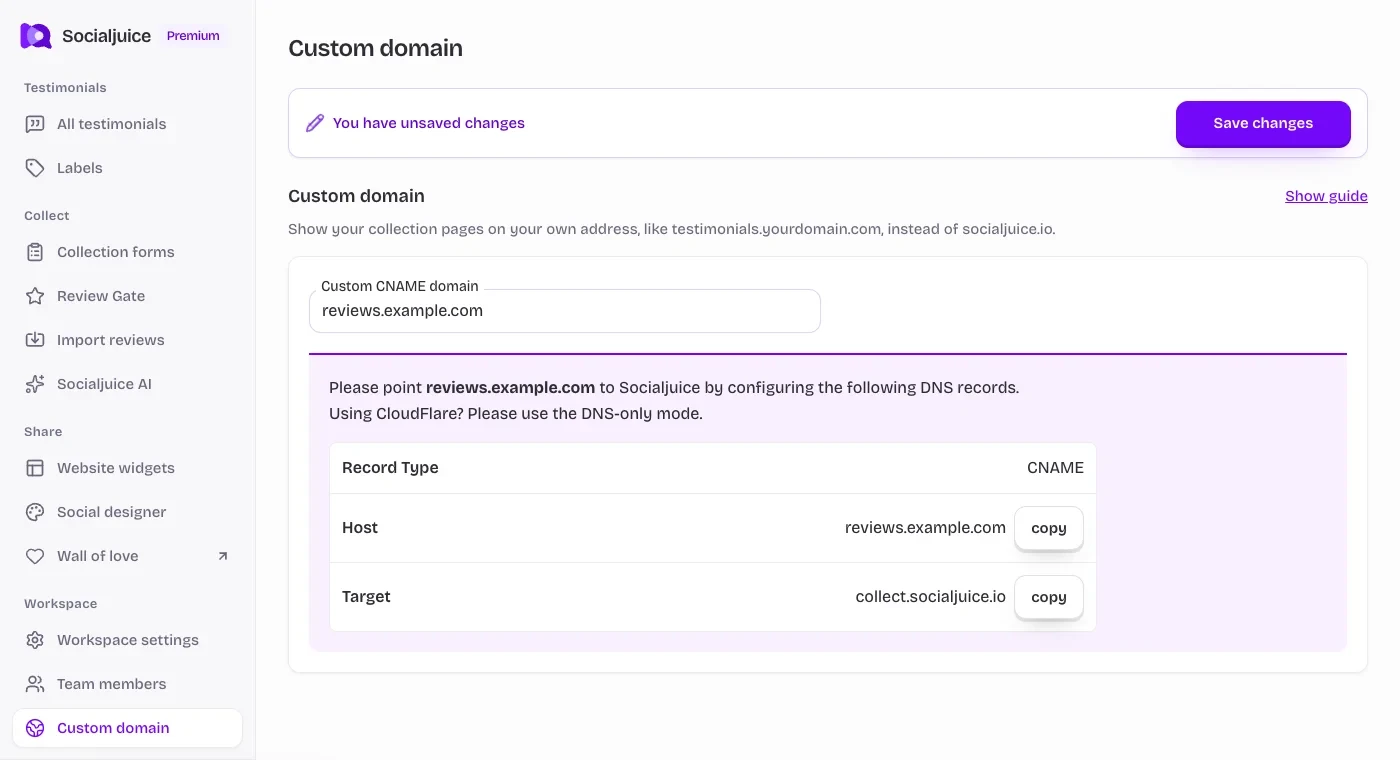
Current Socialjuice dashboard with example data. Interface labels follow your dashboard language.
On this page
Before you change DNS
You need permission to edit the space and access to the domain’s DNS provider. Custom domains depend on your plan. Choose a subdomain such as reviews.example.com; the dashboard expects a subdomain, not a full URL, path, or your main website address.
Use a new subdomain to avoid replacing your live website or email records. The company where you bought the domain may differ from the company currently hosting its DNS. Make changes at the authoritative DNS provider.
Add the domain in Socialjuice
- Open Custom domain in the sidebar, or Workspace settings → Custom domain.
- Enter the complete subdomain, such as reviews.example.com, without https:// or a trailing path. Save the setting.
- Read the DNS records shown in the dashboard. The CNAME target is collect.socialjuice.io. Copy any additional TXT verification records exactly if they appear.
Add the CNAME at your DNS provider
Create a record for the exact subdomain you entered in Socialjuice. Provider field names vary. A typical setup looks like this:
- Type: CNAME.
- Name or Host: reviews, if your provider automatically appends example.com. Use reviews.example.com only when your provider expects the full hostname. Avoid creating reviews.example.com.example.com.
- Target or Value: collect.socialjuice.io, without https:// or a path. Leave TTL on the provider’s default or automatic setting.
- If you use Cloudflare, set this record to DNS only. A proxied record can prevent the expected connection or certificate check.
- If another record already uses this exact hostname, resolve that conflict before adding a CNAME. Do not remove unrelated records, especially mail records.
Complete verification and SSL
If Socialjuice shows TXT verification records, add their exact type, host, and value too. This can happen when the domain is associated with another Vercel account. Do not invent a TXT value or copy one from a screenshot.
Return to the dashboard and choose Refresh. Waiting for TXT verification record means ownership verification is still needed. DNS not pointing to Socialjuice yet (no SSL) means the expected routing or certificate setup has not completed. Connected · SSL certificate active indicates the dashboard considers the connection ready.
DNS changes need time to propagate. Once connected, open the HTTPS address and test the collection page and Wall of Love. Do not bypass a browser certificate warning.
Troubleshoot a domain that will not connect
Check spelling, doubled domain suffixes, a wrong DNS provider, conflicting records, Cloudflare proxying, and any requested TXT verification. A CNAME must point to collect.socialjuice.io, not your app dashboard or the old help center.
If it still fails, send support the hostname, record types, and displayed status. Do not share your DNS-provider password. Disconnecting the domain can break shared links and QR codes using that hostname; plan replacement links first.