Share your form with a QR code
Give customers a quick route from printed material or an in-person visit to your form.
Updated
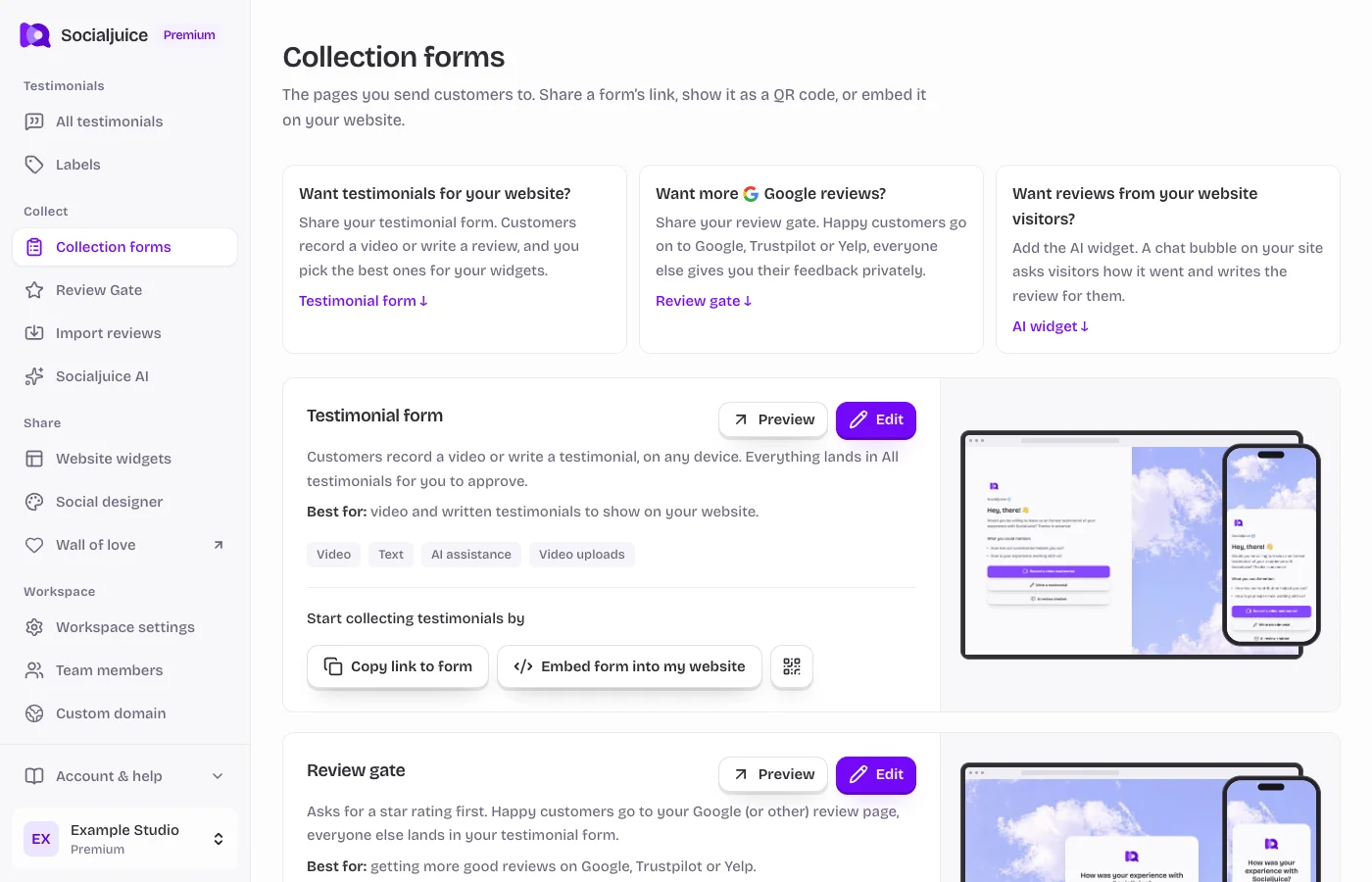
Current Socialjuice dashboard with example data. Interface labels follow your dashboard language.
On this page
Choose and open the QR code
- Open Collection forms in the correct space.
- Choose the QR-code action for Testimonial form or Review Gate. These are different destinations, so check the form name before downloading or sharing.
- Use the download or sharing options shown in the QR dialog. Keep sufficient white space around the code and avoid stretching it.
- Scan the final version from a second device. Confirm it opens your intended public form and that the form works without a dashboard login.
Before printing
Test at the actual printed size, viewing distance, and lighting. A code that works on your monitor can fail when printed too small or placed on reflective material. Include a short written explanation so customers know what will open.
Treat the destination as part of your printed material. Changing a space slug or removing its custom domain may break previously printed links. Test existing codes after changing public URLs.