Add Socialjuice to Webflow
Install a testimonial widget or collection form using Webflow’s Code Embed element.
Updated
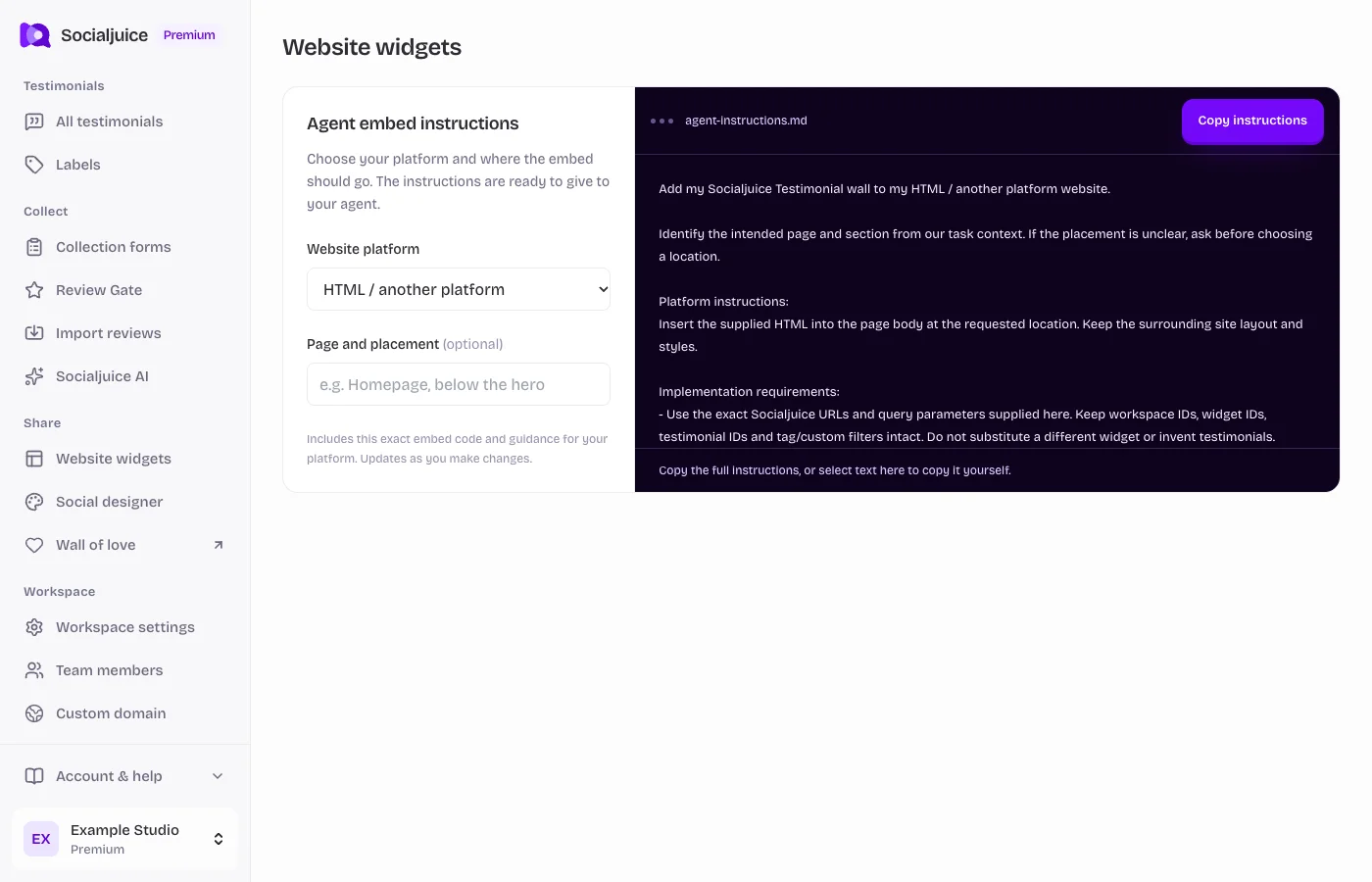
Current Socialjuice dashboard with example data. Interface labels follow your dashboard language.
On this page
Copy the correct embed
For displaying testimonials, open Website widgets and copy the saved widget’s full embed code. To collect new responses, open Collection forms and choose Embed form in my website. These are different snippets.
Use your own snippet from the dashboard. Its IDs, URLs, and filters identify your space and content. Make sure any testimonials you want to display are public.
Add it in Webflow
Open the intended page in Webflow and add a Code Embed element at the desired location. Paste the complete Socialjuice snippet, preserving its script tags, then save the element.
Custom-code availability depends on your Webflow setup. Scripts may not run inside the Designer canvas; verify the staging or published page before concluding that the embed is broken.
Test the visitor experience
- Open the staging or published page outside the editor. Confirm the correct testimonial selection or form loads.
- Check a narrow phone screen as well as desktop. Scroll to the last testimonial or final form button and adjust the container if it is cropped.
- For a collection form, check browser permissions and provide a link to open the form in a new tab if recording is blocked.
- If the embed is empty, check public status and filters in Socialjuice. If code is stripped, resolve the platform’s custom-code limitation before changing the snippet.
Use agent instructions if needed
In the embed dialog, choose your platform under Agent embed instructions and copy the generated instructions. They include your exact snippet and platform-specific setup guidance. Review your requested page and placement before giving them to an agent.