Change your public-page favicon
Add the small brand icon visitors see in their browser tab.
Updated
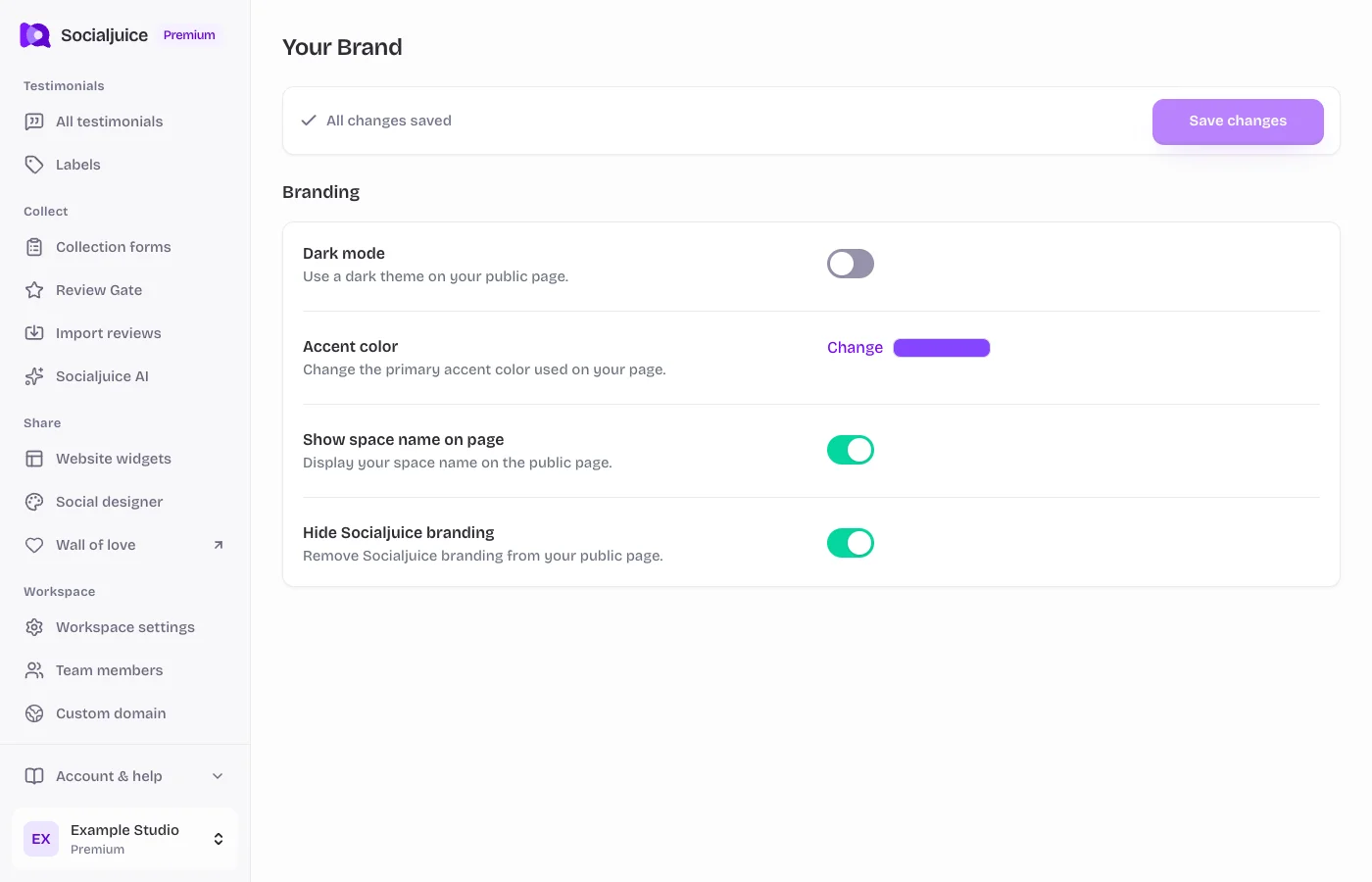
Current Socialjuice dashboard with example data. Interface labels follow your dashboard language.
On this page
Choose a recognizable icon
A favicon is the small icon in the browser tab. It is separate from the larger logo on your collection page and from the social sharing image shown when you paste a link into a message. Use a simple, high-contrast square mark that remains recognizable at a small size.
Upload it in workspace SEO settings
- Open the correct space, then Workspace settings → SEO.
- Find Favicon and choose Upload. The file picker accepts PNG, GIF, and JPEG images. Use a small square brand icon rather than a wide wordmark.
- Wait for the upload to complete and check the Favicon updated message and the dashboard preview.
- Open the public collection page in a new tab and check its browser-tab icon. Also check your custom-domain address if you use one.
If the old icon is still visible
Browsers can cache favicons separately from page content. Open a private window or a new browser session before assuming the upload failed. Confirm that you edited the correct space and that you are viewing its public page, rather than the Socialjuice dashboard.
If an upload fails, try one of the supported image formats and a simpler file. Changing the favicon does not change the page logo or the link-preview image; those have separate controls.