Add a testimonial to a carousel widget
Publish the response and make sure it matches the carousel’s selection and filters.
Updated
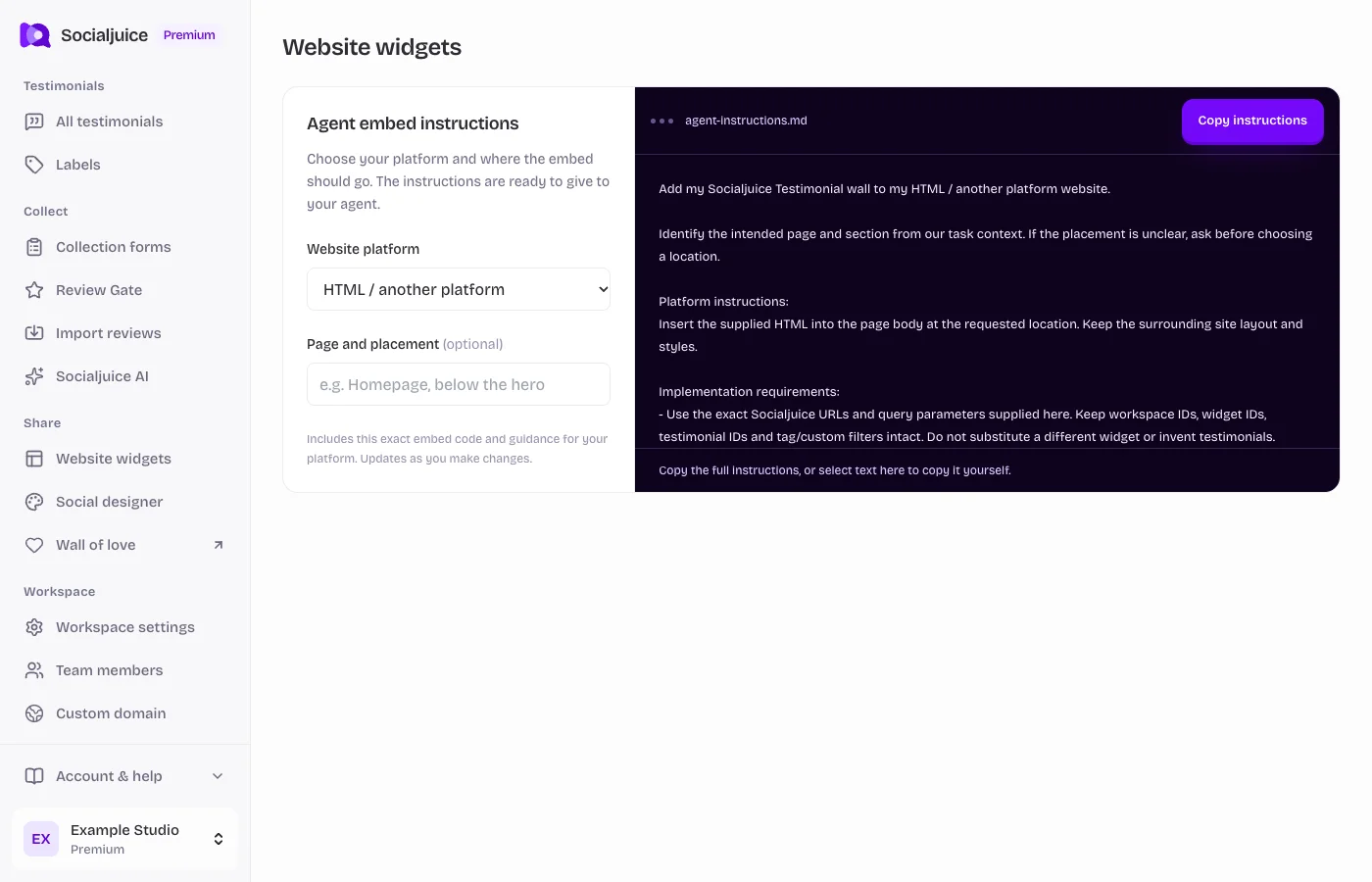
Current Socialjuice dashboard with example data. Interface labels follow your dashboard language.
Start with the correct testimonial
- Open All testimonials in the space that owns the carousel widget.
- Open the response, review its content and consent, and enable Public if you want to display it. Check that it is not archived.
- If your carousel uses labels to choose its content, assign the matching label to the testimonial. A label alone does not make a private testimonial public.
Review the widget selection
- Open Website widgets and edit the saved carousel widget. The older help center called this Embed carousel; the current sidebar groups it under Website widgets.
- Review the selection and filtering controls available for that layout. Include the testimonial or its matching label, and check whether a text-only or video-only filter excludes it.
- Save and inspect the widget preview. If the layout rotates through several testimonials, allow the carousel to move or use its navigation to check the new item.
- Open the actual website page and verify the embedded carousel. If you created a different widget, install its own embed code; another widget’s code will not display this selection.
If it is still missing
Check the space, public status, archived status, labels, content-type filters, and the widget ID used by your website. A response appearing in All testimonials does not guarantee it is included in every saved widget.
If the preview works but the published page does not, use the embed troubleshooting guide to check code, scripts, and container sizing. Do not repeatedly import or submit the same testimonial to make it appear.